Just a quick note for those of you wanting a 64bit version of Firefox!
You can obtain a 64bit version here! For those of you that are daring, download and install Firefox.next (version is based on a time stamp).
For those wanting something that works, you should download a version after the list of files for Firefox.next (e.g. Firefox 3.6 below).
JAVA is available (and more stable from what I can tell) in 64bit flavors and I would recommend installing a 64bit version after installing a 64 bit version of Firefox
Note that Flash is not available for 64 bit browsers yet (unless you are on linux).
Showing posts with label windows. Show all posts
Tuesday, February 16, 2010
Monday, October 05, 2009
Finding and Deleting Files
Today, I was trying to remove a bunch of temporary files using the DOS command prompt on Windows Vista. What a pain in the butt!
Let's assume that I have a bunch of unwanted ".tmp" files in the sub-directory "subdir". The directory "subdir" also has other sub-directories containing more files that I would like to delete.
For those of you familiar with Linux, to find and delete files its as easy as the following command:
To make a long story short, I was finally able to come up with the following:
Let's assume that I have a bunch of unwanted ".tmp" files in the sub-directory "subdir". The directory "subdir" also has other sub-directories containing more files that I would like to delete.
For those of you familiar with Linux, to find and delete files its as easy as the following command:
find ./subdir/ -name '*.tmp'-exec rm -f {} \;Unfortunately, I couldn't muster something like that up on Windows Vista. I tried stuff likedir /B /S | find ".tmp"This produced the full path of the files that I no longer wanted. When I then tried to pipe those files to del, like
dir /B /S | find ".tmp" | delVista just said 'The syntax of the command is incorrect.'
To make a long story short, I was finally able to come up with the following:
for /R %i in ("*.tmp") do del %iDo you have an alternative way of finding and deleting files?
Monday, August 31, 2009
Eclipse.ini / Windows Vista - Don't hardcode Vm; Use JAVA_HOME
I have a little trick for those of you using Windows Vista (and possibly XP), running Eclipse and fed up of editing your eclipse.ini file each and every time you upgrade your JAVA installation! You know what I mean!
According to Eclipsepedia, you need to tell Eclipse the exact path to your JAVA executable. You cannot use JAVA_HOME or any other variable name in this file!
Here we are going to show you how to make Eclipse use your JAVA_HOME directory so that when new versions (one of the umpteen updates) of JAVA are installed, Eclipse just works!
Assumptions:
The next step is to enter the following command at the prompt:

For those of you curious to see what happens when I list the directory contents:

The final step is now to put our symbolic link in the eclipse.ini file. So open up the eclipse.ini file (you can create a backup first if you like) and look for the lines that look like:
and replace them with:
Remember, that you are editing 2 lines (the -vm is on one line, while the java\bin\javaw.exe is on another)!
To confirm that everything works as promised, save your eclipse.ini file and start up eclipse!
According to Eclipsepedia, you need to tell Eclipse the exact path to your JAVA executable. You cannot use JAVA_HOME or any other variable name in this file!
Here we are going to show you how to make Eclipse use your JAVA_HOME directory so that when new versions (one of the umpteen updates) of JAVA are installed, Eclipse just works!
Assumptions:
- You are using Windows Vista (or possible XP).
- You know the exact path to your Eclipse installation directory.
- You know the exact path of the JVM that your eclipse installation is utilizing.
- The variable JAVA_HOME is set up on your computer.
The next step is to enter the following command at the prompt:
mklink /D java %JAVA_HOME%
Basically, we are telling Windows to create a symbolic link from the eclipse home directory, to the JAVA_HOME directory and to call this link java. Windows uses a program called mklink to do this.The output from that command will should resemble something like:

For those of you curious to see what happens when I list the directory contents:

The final step is now to put our symbolic link in the eclipse.ini file. So open up the eclipse.ini file (you can create a backup first if you like) and look for the lines that look like:
-vm
C:\path\to\JAVA_SDK\bin\javaw.exe
and replace them with:
-vm
java\bin\javaw.exe
java\bin\javaw.exe
Remember, that you are editing 2 lines (the -vm is on one line, while the java\bin\javaw.exe is on another)!
To confirm that everything works as promised, save your eclipse.ini file and start up eclipse!
Wednesday, May 27, 2009
Eclipse, Maven & Jetty
How to run your web application Maven archetype with Jetty in Eclipse
We will be creating 2 'External Tool Configurations', one to start our web application and one to stop it.
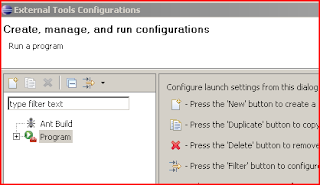
To get started, we need need to bring up the Create, manage, and run configurations window. This can be done by clicking on

From here, we will context click on Program and choose to create a new configuration. Do this twice and give them the names mvn jetty run and mvn jetty stop.

Now we have to configure our new External Tool!
The configuration for both start and stop are very similar! The only difference is for the Arguments section.
Under Location, we need to enter the absolute path to our maven executable. On windows, this is mvn.bat and can be found in the \maven\bin\ directory. On *nix machines, you are looking for mvn.
For Working Directory, we enter ${project_loc}.
Finally, for Arguments, we enter clean jetty:run for our mvn jetty run configuration and jetty:stop for our mvn jetty stop configuration.

The next thing to configure is the Environment. Here we will set up MAVEN_OPTS so that we can remotely debug our application if the need ever arises! This is only done for the mvn jetty run configuration!
Basically, click on New... and give the variable the name MAVEN_OPTS with the value (all on one line):
-Xdebug -Xnoagent -Djava.compiler=NONE -Xrunjdwp:transport=dt_socket,address=4000,server=y,suspend=n

When we are done, it should look like so:
We are pretty much done. I like to have my configuration handy, so I usually add these external configurations to the favorites menu. This is done from the Common tab. Basically, you just add a check to the check box in the Display in favorites menu.
For the run configuration:
And finally, for the stop configuration:

That really is all there is to it. The only other thing to make sure of is that you have the maven-jetty-plugin added to your POM file.
Here is the plugin XML fragment that I have currently:
Let me know if you have any questions!
We will be creating 2 'External Tool Configurations', one to start our web application and one to stop it.
To get started, we need need to bring up the Create, manage, and run configurations window. This can be done by clicking on
Run -> External Tools -> External Tools Configurations...
from the menu bar.

From here, we will context click on Program and choose to create a new configuration. Do this twice and give them the names mvn jetty run and mvn jetty stop.
Now we have to configure our new External Tool!
The configuration for both start and stop are very similar! The only difference is for the Arguments section.
Under Location, we need to enter the absolute path to our maven executable. On windows, this is mvn.bat and can be found in the \maven\bin\ directory. On *nix machines, you are looking for mvn.
For Working Directory, we enter ${project_loc}.
Finally, for Arguments, we enter clean jetty:run for our mvn jetty run configuration and jetty:stop for our mvn jetty stop configuration.
The next thing to configure is the Environment. Here we will set up MAVEN_OPTS so that we can remotely debug our application if the need ever arises! This is only done for the mvn jetty run configuration!
Basically, click on New... and give the variable the name MAVEN_OPTS with the value (all on one line):
-Xdebug -Xnoagent -Djava.compiler=NONE -Xrunjdwp:transport=dt_socket,address=4000,server=y,suspend=n
When we are done, it should look like so:
For the run configuration:
That really is all there is to it. The only other thing to make sure of is that you have the maven-jetty-plugin added to your POM file.
Here is the plugin XML fragment that I have currently:
<plugin>
<groupId>org.mortbay.jetty</groupId>
<artifactId>maven-jetty-plugin</artifactId>
<version>6.1.16</version>
<configuration>
<stopPort>9966</stopPort>
<stopKey>foo</stopKey>
</configuration>
</plugin>
Let me know if you have any questions!
Wednesday, April 29, 2009
Google App Engine & Eclipse
I am going to show you how to run your Google App (Python) in eclipse without any special plugins!
All you need to do is ensure that you have downloaded and installed both the Google App Engine and Python.
The trick to getting Google apps to run within eclipse is to run your app as an 'External Tool'.
From the Eclipse file menu, click on
In the resulting window, choose to create a new program:

Give it a name (I called it 'App Engine') in the Name field. In the Location field, enter the exact path to your Python executable. For the Working Directory, enter the exact path to the Google App Engine.
The Arguments field is the most interesting one! Here we enter:
The dev_appserver.py is the Python script that Google tells you to run when you want to test your app.
The -d just tells the App Engine to output debug statements. Feel free to use any command line arguments that the App Engine allows!
Finally, the ${resource_loc} tells Eclipse to use the full path of any item currently selected in the Navigator.

The final thing to do is to click on the Common tab and to Select "Display in favorites menu". This will provide you with a shortcut so that running your Google App requires the least amount of clicks!

Set up is complete!
Now choose the root folder of your Google App in Eclipse and click on 'App Engine' (or the name that you named your External Tool).

As you can see, the App Engine is running!

Some Notes:
All you need to do is ensure that you have downloaded and installed both the Google App Engine and Python.
The trick to getting Google apps to run within eclipse is to run your app as an 'External Tool'.
From the Eclipse file menu, click on
Run -> External Tools -> External Tools Configuration ...
In the resulting window, choose to create a new program:
Give it a name (I called it 'App Engine') in the Name field. In the Location field, enter the exact path to your Python executable. For the Working Directory, enter the exact path to the Google App Engine.
The Arguments field is the most interesting one! Here we enter:
dev_appserver.py -d ${resource_loc}
The dev_appserver.py is the Python script that Google tells you to run when you want to test your app.
The -d just tells the App Engine to output debug statements. Feel free to use any command line arguments that the App Engine allows!
Finally, the ${resource_loc} tells Eclipse to use the full path of any item currently selected in the Navigator.
The final thing to do is to click on the Common tab and to Select "Display in favorites menu". This will provide you with a shortcut so that running your Google App requires the least amount of clicks!
Set up is complete!
Now choose the root folder of your Google App in Eclipse and click on 'App Engine' (or the name that you named your External Tool).
As you can see, the App Engine is running!
Some Notes:
- If the App engine looks like it has hung (froze), click in the Eclipse console and hit the return key on your keyboard. What may have happened is that the App Engine has prompted you to check for updates and Eclipse didn't show you the message.
- If you get an Eclipse error, "Problem Occurred", make sure that the root folder for your app is selected in Eclipse (i.e. click on it!).
Thursday, January 08, 2009
Skipping Maven Tests ... For real!
For the longest time, I have been trying to figure out how to skip running
the tests that are in a project that I have been working on because they
usually fail!
the tests that are in a project that I have been working on because they
usually fail!
Usually, I edit the POM file and disable testing, but with a project
containing numerous subprojects, this became very tedious.
All of the documentation points to a variable maven.test.skip and states to
set it to true in order to skip tests; something like:
maven.test.skip=true
This has never worked for me. In case you are wondering, I am using maven
2.0.9 (latest as of January 8, 2009)
Having tried everything, I finally have found a way to get it to work
properly:
maven.test.skip.exec=true
Now when I run the install task for the project, I do it like:
mvn -Dmaven.test.skip.exec=true install
Tests are finally skipped!
Sunday, December 28, 2008
Windows and problem playing DVDs
The other day on a short road trip we tried playing a DVD on our laptop and got the following message:

As soon as I got an internet connection, I tried downloading a driver for my video card. After installing it, I assumed that the DVD would play (after all, the message told me it would!).
No luck. I then downloaded new firmware and drivers for my DVD drive. The message did say something about my DVD drive too ...
Again, no luck. Well, what else is there? Then I noticed the word 'decoder' in the message and decided to pursue that option.
I tried a few things, but the one that actually did the trick was to download the XP Codec Pack. After downloading and installing these codecs, I was finally able to play the DVD that we brought to occupy our time on our short road trip!
"Windows Media Player cannot play this DVD because there is a problem with digital copy protection between your DVD drive, decoder, and video card. Try installing an updated driver for your video card."

As soon as I got an internet connection, I tried downloading a driver for my video card. After installing it, I assumed that the DVD would play (after all, the message told me it would!).
No luck. I then downloaded new firmware and drivers for my DVD drive. The message did say something about my DVD drive too ...
Again, no luck. Well, what else is there? Then I noticed the word 'decoder' in the message and decided to pursue that option.
I tried a few things, but the one that actually did the trick was to download the XP Codec Pack. After downloading and installing these codecs, I was finally able to play the DVD that we brought to occupy our time on our short road trip!
Thursday, November 27, 2008
Comparing XML Documents Semantically
I have been interested in comparing the contents of XML documents for some time now.
What I wanted to do is to perform a 'Diff' on 2 XML documents and determine whether or not they are the same document (regardless of whitespace or child element ordering).
In JAVA, I came across XmlUnit. This piece of software is excellent for determining whether or not 2 separate XML documents are equal.
In Perl, I came across XML-SemanticDiff. I thought it was great until I re-ordered the elements in one of my documents. Then this module wasn't so great anymore.
Since I really needed a piece of software equivalent to XmlUnit in Perl, I decided to create my own module and to call it XML-SemanticCompare. This new module really does perform a semantic diff on XML documents:
Using the module is extremely straightforward:
The only downside to this piece of software is that it isn't very efficient (although, it isn't terribly inefficient either).
If you find yourself trying to compare XML documents DOM trees for equality and you are using Perl, please check out XML-SemanticCompare. If you can make the code more robust and efficient, please do!
What I wanted to do is to perform a 'Diff' on 2 XML documents and determine whether or not they are the same document (regardless of whitespace or child element ordering).
In JAVA, I came across XmlUnit. This piece of software is excellent for determining whether or not 2 separate XML documents are equal.
In Perl, I came across XML-SemanticDiff. I thought it was great until I re-ordered the elements in one of my documents. Then this module wasn't so great anymore.
Since I really needed a piece of software equivalent to XmlUnit in Perl, I decided to create my own module and to call it XML-SemanticCompare. This new module really does perform a semantic diff on XML documents:
- Child element re-ordering doesn't result in false negatives.
- Whitespace is trimmed from text by default when comparing text and attribute values [can be turned off].
- Attributes can be ignored [turned off by default].
Using the module is extremely straightforward:
use XML::SemanticCompare;
my $x = XML::SemanticCompare->new;
# compare 2 different files
my $isSame = $x->compare($control_xml, $test_xml);
# are they the same
print "XML matches!\n"
if $isSame;
print "XML files are semantically different!\n"
unless $isSame;
# get the diffs
my $diffs_arrayref = $x->diff($control_xml, $test_xml);
# test xpath statement against XML
my $success = $x->test_xpath($xpath, $test_xml);
print "xpath success!\n" if $success;
The only downside to this piece of software is that it isn't very efficient (although, it isn't terribly inefficient either).
If you find yourself trying to compare XML documents DOM trees for equality and you are using Perl, please check out XML-SemanticCompare. If you can make the code more robust and efficient, please do!
Tuesday, November 25, 2008
A perl script to rename your files
For those of you looking for a cool way to rename your files, here is a little script that could work wonders for you.
Basically, this scripts takes in a PERL substitution expression and applies it to the filename of interest.
To get started, copy the script below into a file called 'rename.pl'. Once you have done that, then read the usage instructions by running the script with the '-h' option. Of course, you will need perl installed on your machine.
So why write this script? Because I got sick and tired of manually renaming files by hand. Some people have files called 'some_file.txt'. I prefer that file to be called 'SomeFile.txt'.
To accomplish this, all I have to do is run the script like so:
followed by
Note: The -u option causes the first letter of each word separated by a space to be capitalized.
Okay, maybe its quicker to manually do this for a single file, but if you are on Windows and have a whole folder full of files like that, then the process is:
That is all there is to it! All of the files will be renamed with 'camel' text names.
Please make sure that before you attempt to batch rename files, that you have them backed up first!
Script start [hint: dont copy this line ;-)]
Script End [hint: dont copy this line ;-)]
Basically, this scripts takes in a PERL substitution expression and applies it to the filename of interest.
To get started, copy the script below into a file called 'rename.pl'. Once you have done that, then read the usage instructions by running the script with the '-h' option. Of course, you will need perl installed on your machine.
So why write this script? Because I got sick and tired of manually renaming files by hand. Some people have files called 'some_file.txt'. I prefer that file to be called 'SomeFile.txt'.
To accomplish this, all I have to do is run the script like so:
perl rename.pl -u "s/_/ /g" some_file.txt
followed by
perl rename.pl "s/ //g" "Some File.txt"
Note: The -u option causes the first letter of each word separated by a space to be capitalized.
Okay, maybe its quicker to manually do this for a single file, but if you are on Windows and have a whole folder full of files like that, then the process is:
for %v in (*.txt) do perl rename.pl -u "s/_/ /g" "%v"
for %v in (*.txt) do perl rename.pl "s/ //g" "%v"
That is all there is to it! All of the files will be renamed with 'camel' text names.
Please make sure that before you attempt to batch rename files, that you have them backed up first!
Script start [hint: dont copy this line ;-)]
#!/usr/bin/perl -w
BEGIN {
use Getopt::Std;
use vars qw/ $opt_h $opt_u /;
getopt;
# usage
sub usage {
print STDOUT <<'END_OF_USAGE';
Usage: rename [-hu] sub_regex [files]
sub_regex is any expression that you would like to
apply to filename. You can use capturing or just
matching.
-h .... shows this message ;-)
-u .... makes first letter of each word uppercase
examples:
1.
perl rename.pl "s/_/ /g" rename_me.txt
This renames rename_me.txt to "rename me.txt"
2.
perl rename.pl -u "s/_/ /g" rename_me.txt
This renames rename_me.txt to "Rename Me.txt"
3. MS Windows example
for %v in (*.mp3) do perl rename.pl -u "s/_/ /g" "%v"
This renames all mp3 files in the current directory such that
every word begins with a capital letter and all underscores
are replaced with spaces.
END_OF_USAGE
}
if ($opt_h) {
usage();
exit(0);
}
}
# get the substition regex
$op = shift or (usage() and exit(1));
# go through file names
chomp(@ARGV) unless @ARGV;
for (@ARGV) {
$was = $_;
eval $op;
die $@ if $@;
# cap first letter of each word
my $newname = "";
my @components = split(/ /, $_);
foreach (@components) { my $x = $_; $x = ucfirst lc $x if $opt_u;
if ( $newname eq "") {
$newname = "$x";
} else {
$newname .= " $x";
}
}
rename($was,$newname) unless $was eq $newname; }
Script End [hint: dont copy this line ;-)]
Friday, April 25, 2008
dos2unix On Every File in a Dir
I am by no means a Linux expert and I find myself forgetting obvious commands if I haven't used them for a while.
Today, I found myself needing to apply the app 'dos2unix' on a bunch of files recursively in a directory.
After fumbling for a few minutes, this is what I came up with:
Now hopefully, I wont forget again!
Today, I found myself needing to apply the app 'dos2unix' on a bunch of files recursively in a directory.
After fumbling for a few minutes, this is what I came up with:
find . -type f -exec dos2unix '{}' \;Now hopefully, I wont forget again!
Friday, March 02, 2007
Solving Pesky ssh Issues in Cygwin
Every time that I re-install cygwin and I use ssh for the first time, I encounter minor annoyances. My biggest annoyance is the fact that no matter how many times I log into a remote machine, cygwins' ssh utility tells me the following:
So that message occurs every single time that I attempt to login to the remote machine.
So the question is, how do I solve this problem? The solution was actually quite simple!
First locate the file called 'passwd' in your C:\path\to\cygwin\etc directory and open it with wordpad.
Second, replace the text
/home/YOUR_NAME
with
/cygdrive/c/Documents and Settings/YOUR_NAME
Finally, save the file.
In hindsight, the solution is very straightforward, but it took me hours to finally figure out. Hopefully, I can save your time!
Could not create directory '/home/ME/.ssh'.Once I enter 'yes', I get the following:
The authenticity of host 'xxx.yyy.zzz.ca (1xx.82.67.xx)' can't be established.
RSA key fingerprint is 6c:59:15:64:ed:c8:67:35:d6:ed:1c:a2:ee:87:2b:3f.
Are you sure you want to continue connecting (yes/no)?
Failed to add the host to the list of known hosts (/home/ME/.ssh/known_hosts).
So that message occurs every single time that I attempt to login to the remote machine.
So the question is, how do I solve this problem? The solution was actually quite simple!
First locate the file called 'passwd' in your C:\path\to\cygwin\etc directory and open it with wordpad.
Second, replace the text
/home/YOUR_NAME
with
/cygdrive/c/Documents and Settings/YOUR_NAME
Finally, save the file.
In hindsight, the solution is very straightforward, but it took me hours to finally figure out. Hopefully, I can save your time!
Saturday, February 03, 2007
Maven, Windows and Deploying to a Remote Location
If you are a programmer on Windows, some tasks take longer to perform than others. Attempting to set up maven so that you can deploy files to a remote machine is one of those tasks!
Here is what you need to get the job done:
If the above links do not work, use Google and search for "putty download".
Once you download them, place them in a folder called putty and move that folder to your root drive (C:\). The next thing that you should do is add that folder to the PATH. Not sure how to do that?
Now you need to create a private key from the remote server that you would like to deploy your files to.
The key that we generated on the remote machine will now be used to create one that is compatible with putty. We will now use puttygen to create a 'putty' private key.
Most of the 'hard' stuff is now done. Next we will add our remote server to our local maven configuration. To do this, we will have to modify the file settings.xml.
The settings.xml file is usually located in
c:\Documents and Settings\<user>\.m2.
Before proceeding, you should back up the file. Open settings.xml in Wordpad and add the following fragment of xml into the file:
That's really all there is to do. However, if you are lazy, like myself, then create a windows batch file that does the deploying for you!
Below is one that I use. You will have to modify the lines in bold. Run it without arguments first, to have it display the usage!
@echo off
if "%1"=="" GOTO ERROR
if "%2"=="" GOTO ERROR
GOTO DEPLOY
:ERROR
@echo off
echo There was an error deploying file.
echo usage:
echo %0 jar pom [repository_id]
goto END
:DEPLOY
setlocal
set REPO=%3
if "%3"=="" set REPO=remote-repository-id
@echo on
REM should be on one line!
mvn deploy:deploy-file -Dfile=%1 -DpomFile=%2 -Durl=scpexe://remote_server_domain/:/remote/path/to/maven/ -DrepositoryId=%REPO%
REM end one line
endlocal
@echo off
GOTO END
:END
@echo off
Here is what you need to get the job done:
If the above links do not work, use Google and search for "putty download".
Once you download them, place them in a folder called putty and move that folder to your root drive (C:\). The next thing that you should do is add that folder to the PATH. Not sure how to do that?
- press the windows key and 'pause break' at the same time.
- A system properties panel will appear. Click on the 'Advanced' tab.
- Click on the 'Environment Variables' button.
- Locate the PATH variable from the System variables portion of the panel and choose 'Edit'.
- Append, without quotations, ';c:\putty;' to the end of the PATH value.
- close the panels and you are done!
Now you need to create a private key from the remote server that you would like to deploy your files to.
- ssh into the remote machine
- execute the following command on the remote machine
ssh-keygen -b 1024 -f ssh_host_key -N '' -t rsa
This will create a file called ssh_host_key. - On your local machine, create a folder called c:\ssh and place the file, ssh_host_key, in that folder from the remote machine.
The key that we generated on the remote machine will now be used to create one that is compatible with putty. We will now use puttygen to create a 'putty' private key.
- Double click the file puttygen.
- Make sure that you select you select 'ssh-2 RSA' at the bottom of the page.
- Next choose, Conversion -> import.
- Select c:\ssh\ssh_host_key.
- Save the generated key (save both the public/private key) in c:\ssh.
Most of the 'hard' stuff is now done. Next we will add our remote server to our local maven configuration. To do this, we will have to modify the file settings.xml.
The settings.xml file is usually located in
c:\Documents and Settings\
Before proceeding, you should back up the file. Open settings.xml in Wordpad and add the following fragment of xml into the file:
That piece of xml goes in the servers portion of the file. Add it and modify the bold pieces of the text.
<server>
<id>remote-repository-id</id>
<username>your_username_here</username>
<password>your password here</password>
<privateKey>c:/ssh/your_private_key.pkk</privateKey>
<configuration>
<sshExecutable>plink</sshExecutable>
<scpExecutable>pscp</scpExecutable>
</configuration>
</server>
That's really all there is to do. However, if you are lazy, like myself, then create a windows batch file that does the deploying for you!
Below is one that I use. You will have to modify the lines in bold. Run it without arguments first, to have it display the usage!
@echo off
if "%1"=="" GOTO ERROR
if "%2"=="" GOTO ERROR
GOTO DEPLOY
:ERROR
@echo off
echo There was an error deploying file.
echo usage:
echo %0 jar pom [repository_id]
goto END
:DEPLOY
setlocal
set REPO=%3
if "%3"=="" set REPO=remote-repository-id
@echo on
REM should be on one line!
mvn deploy:deploy-file -Dfile=%1 -DpomFile=%2 -Durl=scpexe://remote_server_domain/:/remote/path/to/maven/ -DrepositoryId=%REPO%
REM end one line
endlocal
@echo off
GOTO END
:END
@echo off
Subscribe to:
Comments (Atom)